Help · Your branded page · 4 min read
Brand your page
Background, logo, profile picture, and colors — a meeting that's unmistakably yours.
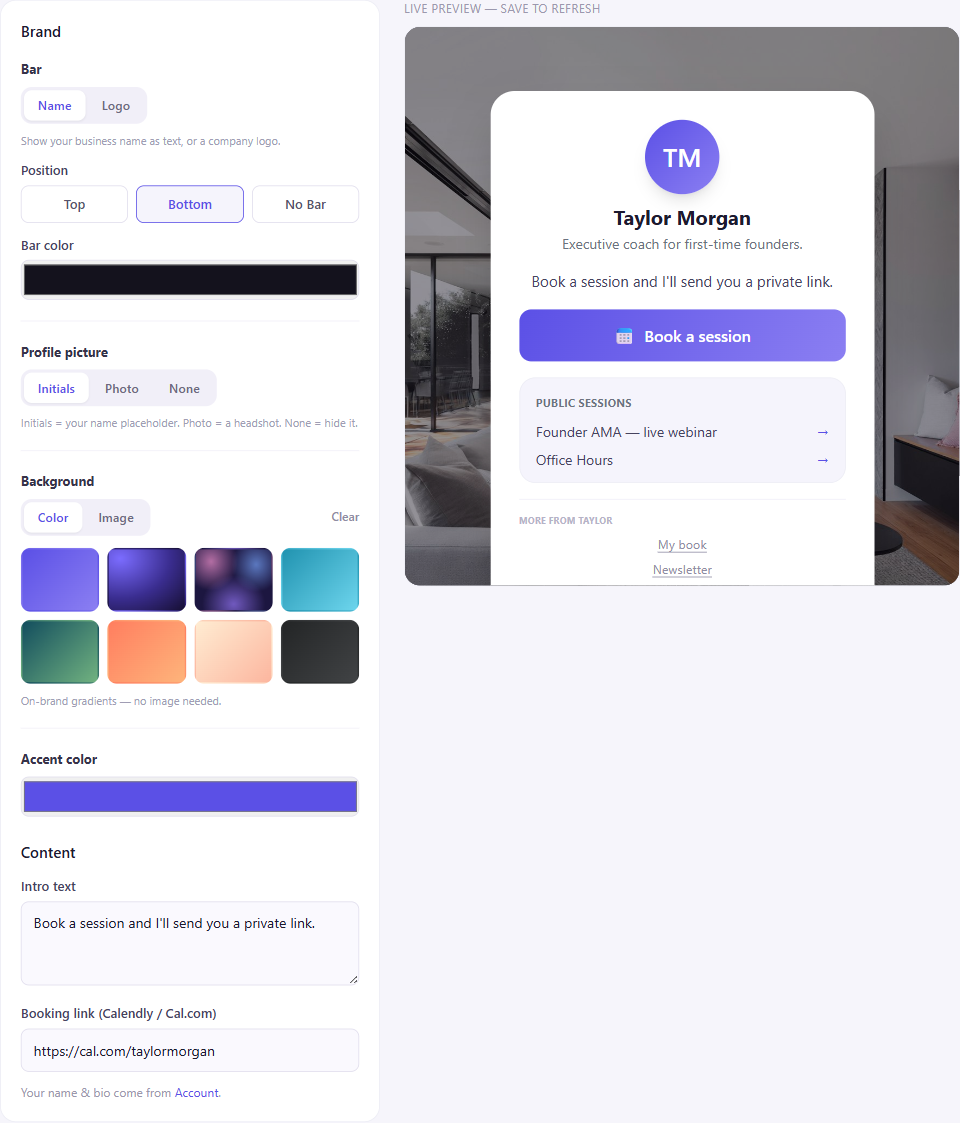
Your lobby and every meeting are a full-bleed branded experience — a background, a bar with your name or logo, your profile picture, and your colors. You set it all in the page builder with a live preview, and everything is an upload or a built-in preset — there are no image URLs to paste.
1
Open the page builder
From your dashboard, go to Lobby. The Brand card on the left has four sections — Bar, Profile picture, Background, and Accent color — and the panel on the right is a live preview of your real page. Hit Save changes when you're happy.
2
Pick a background
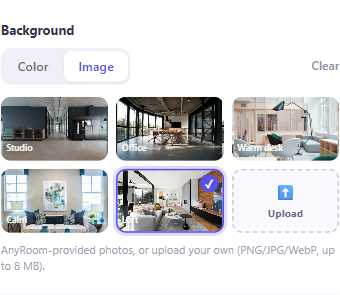
Under Background, choose Color for an on-brand gradient (Aurora, Dusk, Ocean, Sunset, and more — no image needed), or Image for an AnyRoom-provided photo (Studio, Office, Loft…) or your own upload. Backgrounds can be PNG, JPG, or WebP, up to 8 MB.
3
Set the bar — your name or logo
The Bar runs along the top or bottom of the page. Choose Name to show your business name as text, or Logo to upload a company logo (PNG / JPG / WebP, up to 2 MB). You can also set the bar's position (top / bottom / no bar) and its color.
4
Add a profile picture
Under Profile picture, pick Initials (a clean placeholder from your name), Photo (upload a headshot, up to 2 MB), or None to hide it entirely.
5
Choose your accent & content
Set your Accent color — it tints your buttons and highlights. Below the Brand card, the Content section is where you write a short intro and add a booking link — see Add your booking link.
Uploads or presets — never a URL
AnyRoom keeps your images on its own fast storage, so you upload a file or pick a preset rather than pasting a link. Your name and bio come from Account.
Want to point clients elsewhere?