Help · Getting started · 2 min read
Quick start
Zero to a branded link you can share — in three steps.
AnyRoom sits between the link you share and the video call your client joins. Instead of a raw zoom.us/j/… link, you share one branded link — and your client (a coaching client, a patient, a student) lands on a page that's unmistakably yours before they join. Here's the fastest way to set yours up.
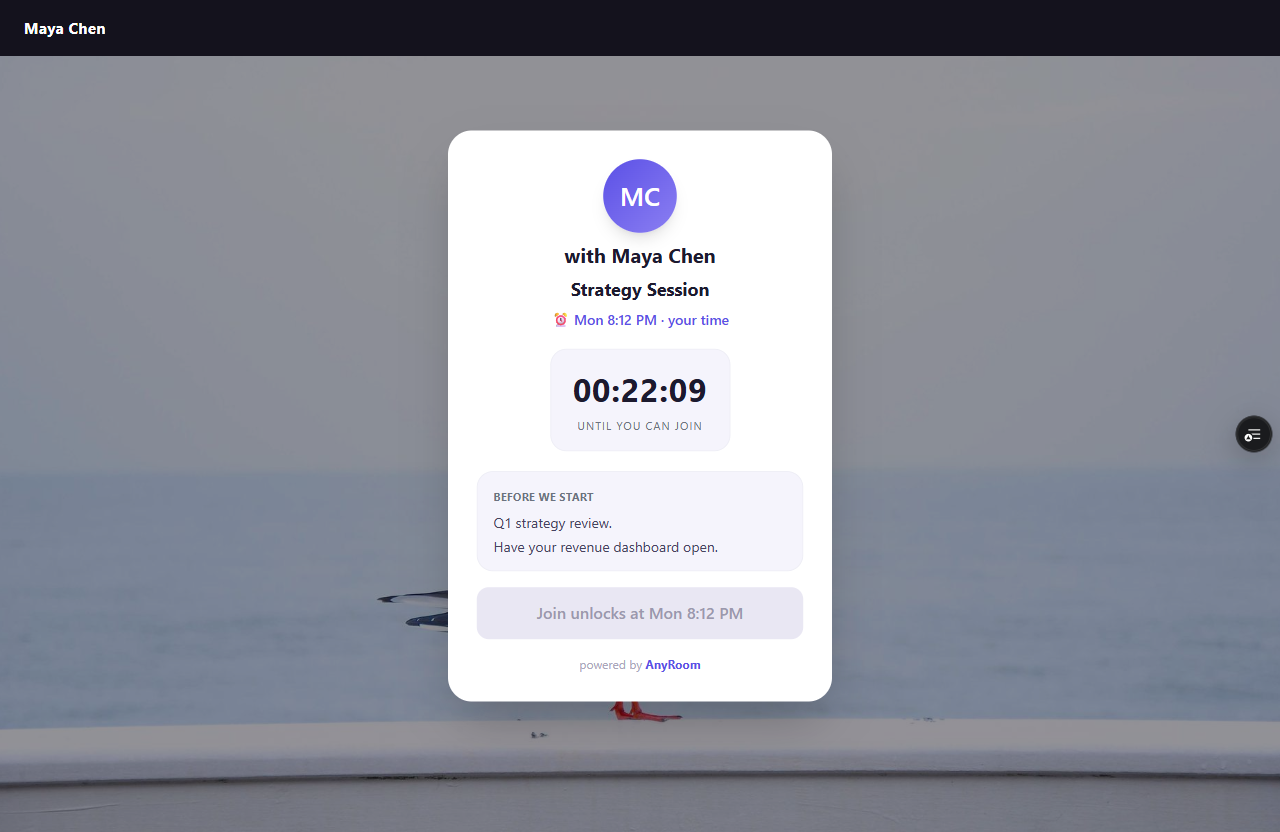
1
Claim your link
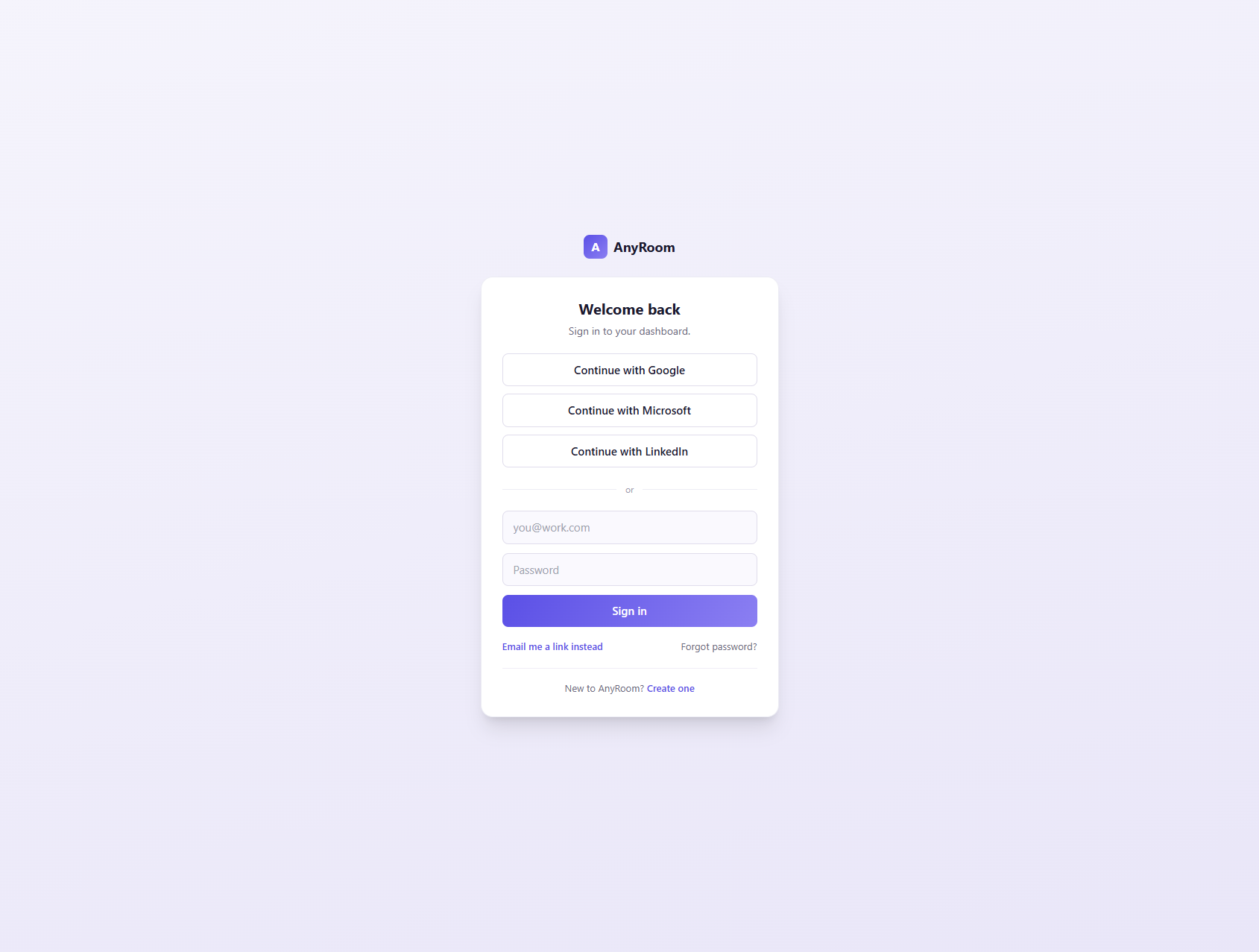
Sign up (email, a magic link, or Google / Microsoft / LinkedIn) and pick a handle — that becomes your permanent address, anyroom.app/meet/you. Choose carefully: your handle is locked once you pick it for now, so the links you share keep working.
2
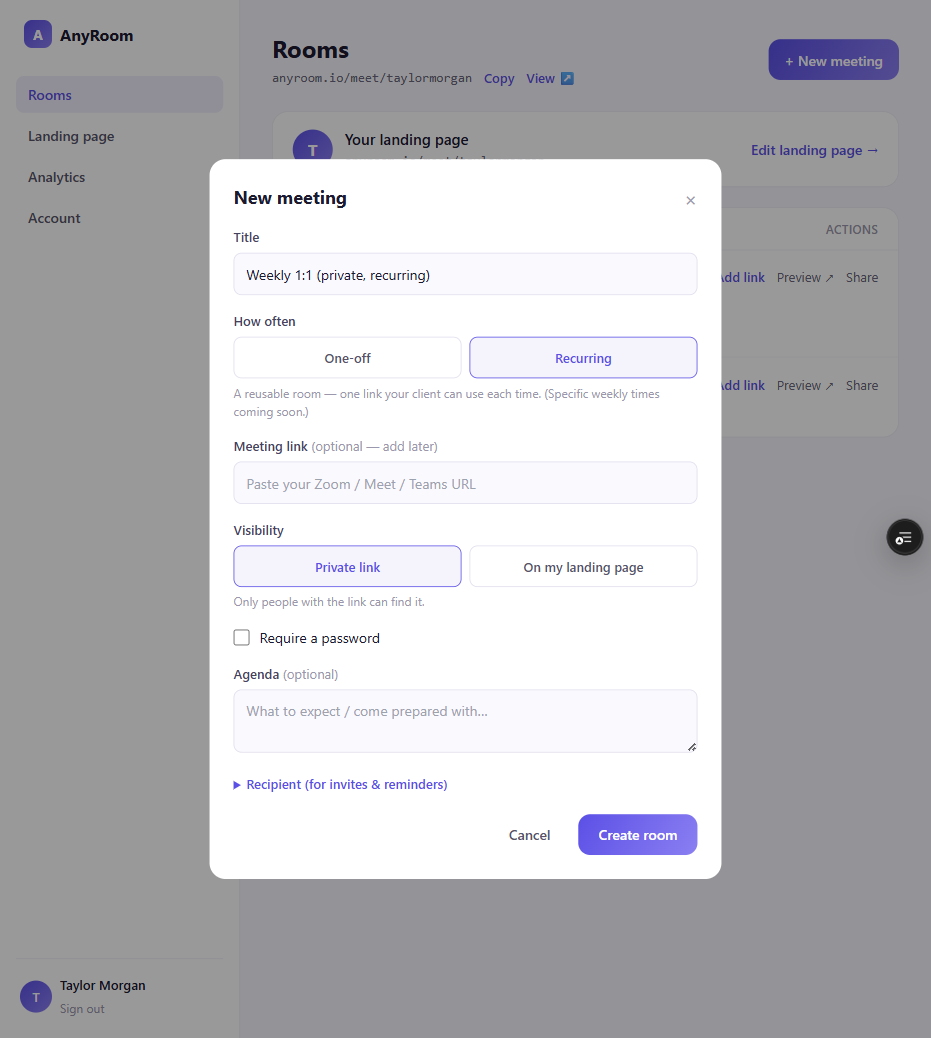
Create a meeting & paste your meeting link
Hit + New meeting, then paste your Zoom / Meet / Teams link. AnyRoom detects the provider and stores it encrypted. (Need a reusable link? See Get your reusable meeting link.)
3
Share it — and start when it's time
Copy your branded link and send it however you like. When the meeting starts, open your own meeting and click Start the meeting.
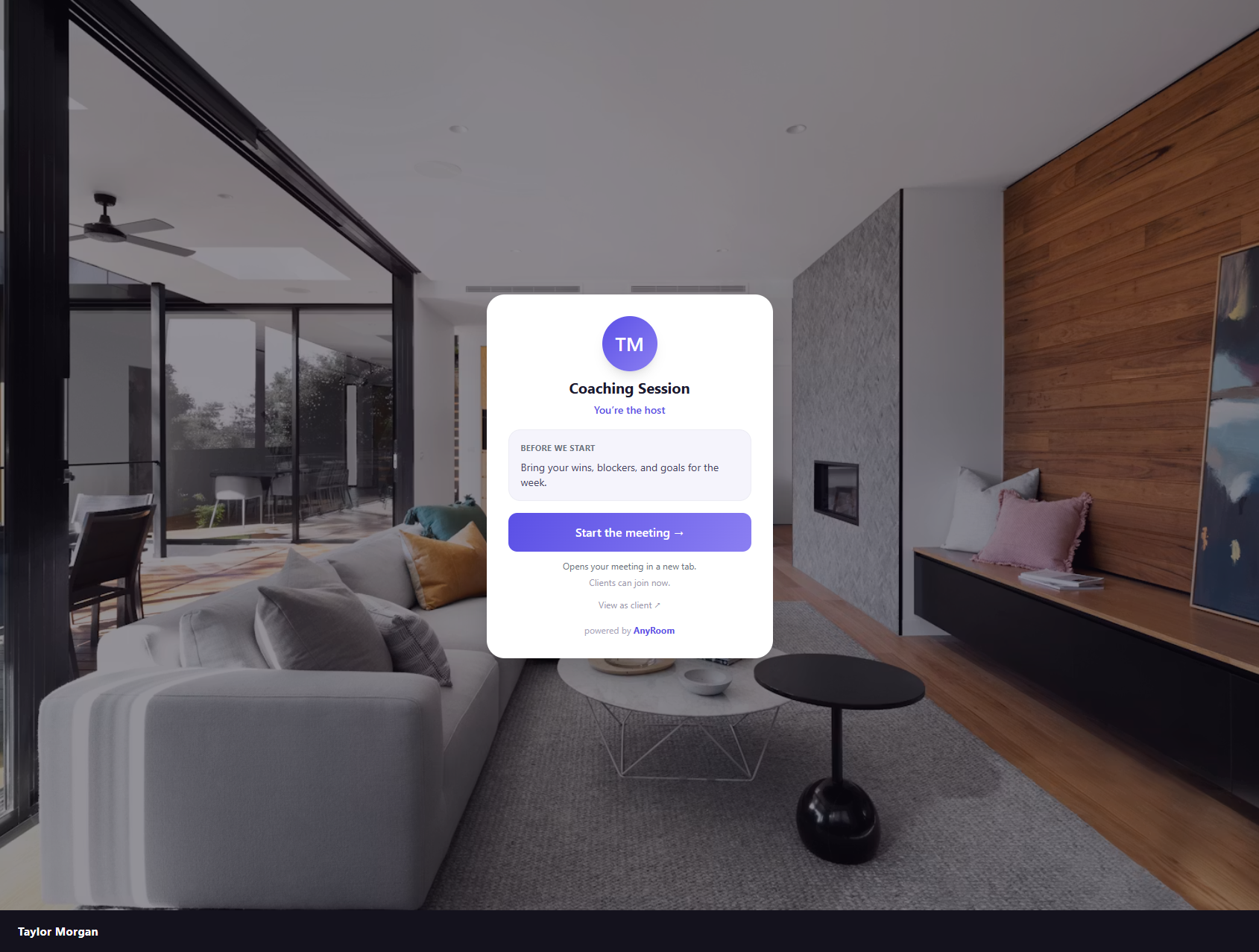
That's the whole loop
One link you set up once → share it → start from your meeting. The meeting behind it can change anytime; the link you've shared never does.
Already use Calendly?
Paste your scheduler's link and your lobby gets a Book a session button so clients can grab a time — see Add your booking link.