Help · Meetings & meetings · 3 min read
Create a meeting
A meeting is a branded link for a meeting. Two simple choices shape what it is.
A meeting is a branded link you share for a meeting. Creating one takes a few seconds — and two independent choices decide what kind of meeting it is.
1
Click "New meeting"
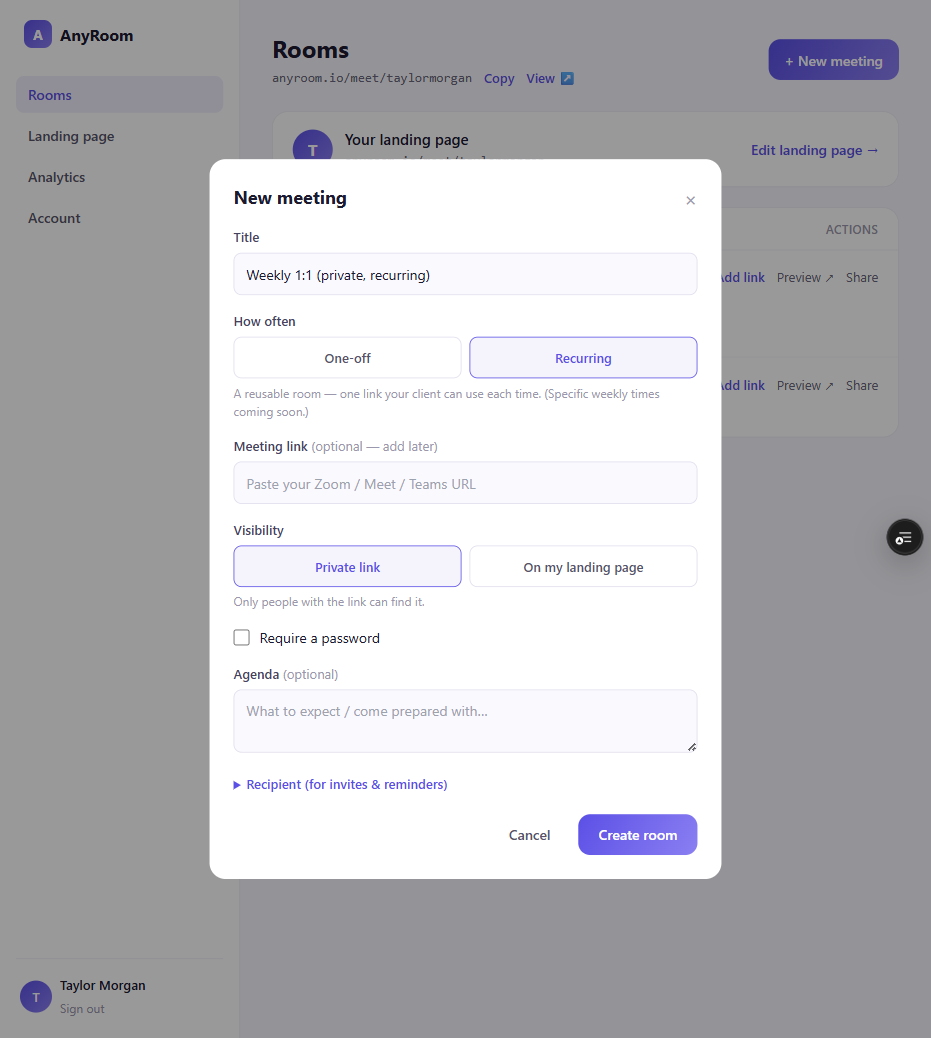
From your dashboard, hit + New meeting and give it a title.
2
Choose how often: One-off or Recurring
One-off is a single meeting that wraps up afterward. Recurring is a reusable meeting you can use again and again with the same link.
3
Choose visibility: Private or On your lobby
Private means only people with the link can find it. On your lobby lists it publicly on your page — great for office hours or a webinar. These two choices are independent: a one-off can be public; a recurring meeting can be private.
4
Paste your meeting link (or add it later)
Drop in your Zoom / Meet / Teams / Webex / Zoho link. AnyRoom detects the provider automatically and stores it encrypted. No link yet? You can add it anytime.
The four corners
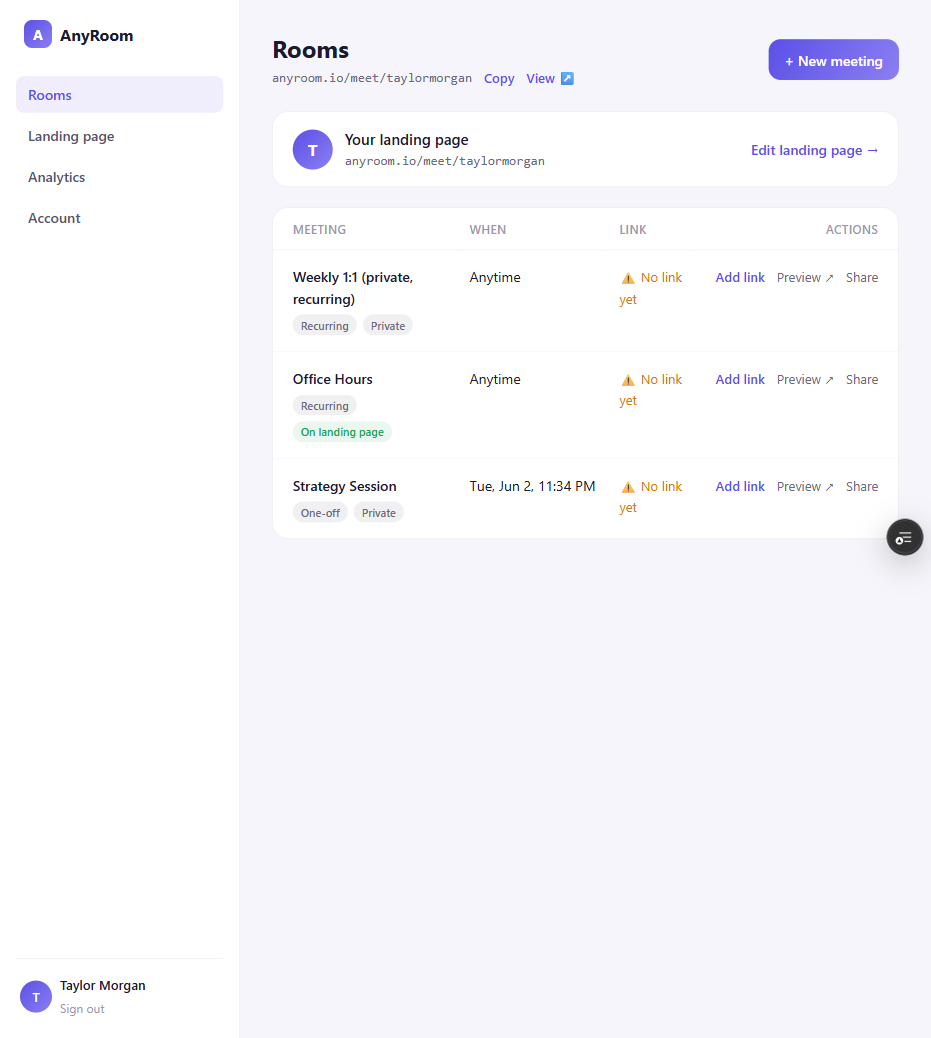
Because *how-often* and *visibility* are separate, every combination is valid: private one-off, public one-off (a webinar), private recurring (a weekly 1:1), public recurring (office hours).