Help · Your branded page · 2 min read
Add links & social icons
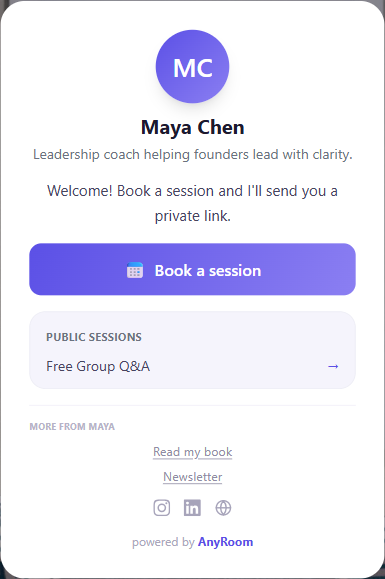
A tasteful "More from you" row of social icons and a couple of links, on every page.
Point clients to the rest of your world — your Instagram, your newsletter, your book — with a small "More from you" section that appears on your lobby and your meeting pages. It's intentionally minimal: a row of social icons and up to two labelled links. Not a Linktree.
1
Open the Links card
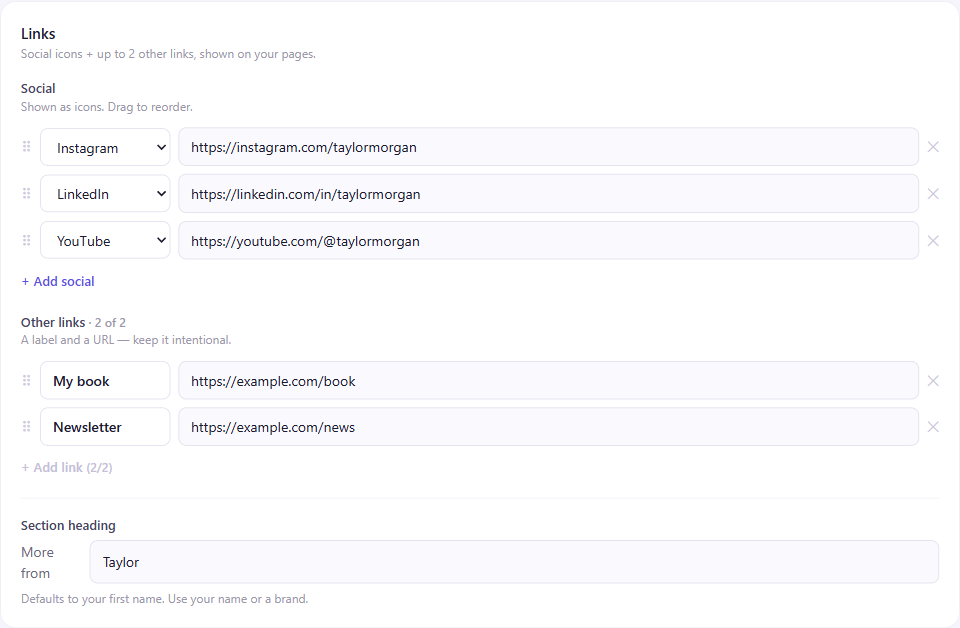
On Lobby, scroll to the Links card ("Social icons + up to 2 other links, shown on your pages").
2
Add social icons
Under Social, click + Add social, choose a platform — Instagram, LinkedIn, X, YouTube, TikTok, Facebook, Website, or Email — and paste your URL. Drag the ⠿ handle to reorder them.
3
Add up to two links
Under Other links, add a label and a URL — like "Read my book" or "Newsletter." You get two (it's a meeting page, not a link dump); + Add link greys out once you've used both.
4
Set the heading
The section reads "More from ___" — it defaults to your first name, but you can change it to your full name or a brand. Hit Save changes.
Where clients see it
It shows on your lobby, on the waiting page as a client is about to join, and on the "meeting ended" page — quiet text links and small icons, never loud.